How to install (and run) tcpdump on Android devices
When performing the analysis of a malicious Android program directly on the device, often can be required to dump some network traffic.
This operation is pretty simple when the device is connected to a wifi network managed by the analyst, but in some cases malware perform some type of operation only when the smartphone is connected to a mobile network.
In this case, can be helpful extract the network traffic using a local installation of tcpdump.
Let’s figure out how to do that.
Before all: your device must be rooted. Please refer to XDA forums in order to search the best method.
So, first you need to obtain a tcpdump binary compiled for ARM architecture. You can find it at this link: https://www.androidtcpdump.com/android-tcpdump/downloads
Then, install the tcpdump executable on your device:
$ adb root
$ adb remount
$ adb push ./tcpdump /system/xbin/tcpdump
Finally, access to the shell on your device
$ adb shell
Select onne of the available interface to capture (or use the “any” interface to capture ALL traffic on the device)
# tcpdump -D
1.tun0 [Up, Running]
2.rmnet_usb0 [Up, Running]
***3.any (Pseudo-device that captures on all interfaces)*** [Up, Running]
4.lo [Up, Running, Loopback]
5.p2p0 [Up]
6.wlan0 [Up]
7.nflog (Linux netfilter log (NFLOG) interface)
8.nfqueue (Linux netfilter queue (NFQUEUE) interface)
9.usbmon1 (USB bus number 1)
And start the capture, saving the output on /sdcard/dump.pcap
# tcpdump -vv -i any -s 0 -w /sdcard/dump.pcap
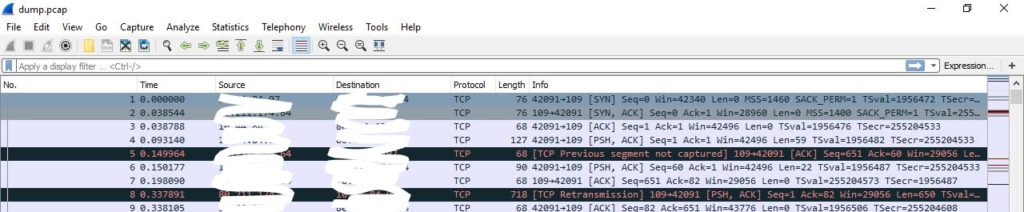
Once the capture session has been completed, you can get the dump.pcap file using adb:
adb pull /sdcard/dump.cap .
References and further readings
- XDA Forums
- tcpdump builds for ARM Android
- MANPAGE of tcpdump