iOS Forensics without Jailbreak: a practical guide to mobile evidence acquisition
Every time I work on an iOS forensic case, someone asks me: “Do we need to jailbreak this thing?” It’s a fair question, and the answer has changed a lot over the years. These days, you can pull a surprising amount of evidence from modern iOS devices without touching the jailbreak route at all.
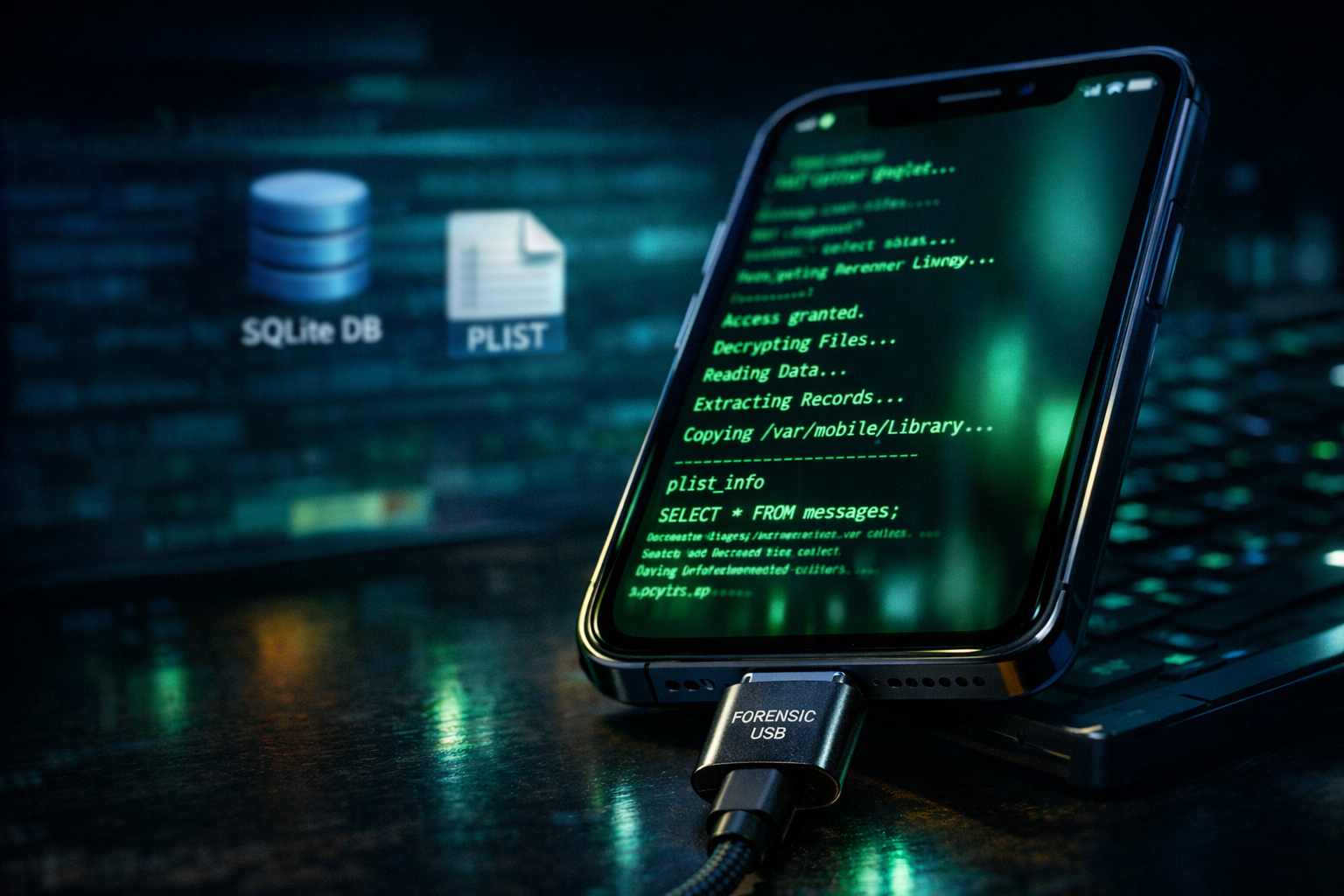
This guide is written with iOS 18 and iOS 26 in mind, since those are what we’re dealing with in 2026. I’ve covered jailbreak-based techniques before, including BFU acquisition using checkra1n and full disk acquisition, and those methods still work great for older devices. But Apple keeps tightening security, so non-jailbreak approaches have become essential for anyone working with recent hardware.
If you’ve been following my blog, you might remember my posts on HFS+ file system internals, sysdiagnose extraction, and logical acquisitions with libimobiledevice. Consider this article an update that brings everything together for the current iOS ecosystem.
What can you actually extract?
You might be surprised by how much data is accessible without jailbreaking. In most investigations, non-jailbreak methods cover what you need.
Device and system information
The basics are all there: model number, serial number, ICCID, IMEI, timezone settings, Find My iPhone configuration, and SIM card details. This information helps establish who owned the device and when, which is often the foundation of any investigation.
Native application data
This is where things get interesting. Without any jailbreak, you can grab configured accounts, the full contact list, calendar entries, call logs including FaceTime calls, iCloud files, Maps data with search history and frequent locations, the entire photo library with all its metadata, Notes, Safari history and bookmarks, all your SMS, MMS, and iMessage threads, Shortcuts configurations, voicemail recordings, and even Weather app data.
Connectivity artifacts
Network evidence is often overlooked, but it’s incredibly useful. You can extract the Bluetooth database showing every paired device, known Wi-Fi networks including those with private MAC addresses, and HomeKit configurations for IoT devices. This stuff can place a device at specific locations or connect it to other devices in ways the user might not expect.
Pattern of life evidence
iOS collects a lot of behavioral data in the background. Health app information, keyboard statistics that reveal what someone types frequently, the interactionC database tracking contact patterns, PersonalizationPortrait data, and recently accessed items all paint a detailed picture of how someone uses their device day to day.
Acquisition techniques explained
There are three main non-jailbreak acquisition methods you should know about. In practice, you’ll want to use all three together for the best results.
Logical acquisition (iTunes backup)
This is the bread and butter of iOS forensics and it still works perfectly on iOS 18 and 26. You’re basically using Apple’s own backup system to create a snapshot of app data and system databases. The beauty of this approach is that it’s forensically sound since nothing gets modified on the device itself. One important tip: always go for encrypted backups when possible. They contain significantly more data, including saved passwords, Health information, and Wi-Fi credentials.
Advanced logical (Logical+)
This method pairs the standard iTunes backup with the Apple File Conduit protocol, giving you access to /private/var/mobile/Media. AFC extraction picks up media files, downloads, books, voice recordings, and other content that might not make it into a regular backup. The nice thing about AFC is that it works even when a backup password is set, so it’s a reliable fallback.
Crash logs and sysdiagnose extraction
People tend to skip this step, but they shouldn’t. Sysdiagnose files are packed with Apple Unified Logs and diagnostic data that can tell you when apps were installed or removed, when the device was activated, when the passcode was changed, shutdown and restart times, and detailed Wi-Fi connection history. Make this part of your standard workflow.
Open source tools arsenal
The forensics community has built some excellent open source tools that can go toe-to-toe with expensive commercial solutions for non-jailbreak work.
libimobiledevice: the foundation
This cross-platform library handles all the protocol stuff needed to talk to iOS devices, and most other tools are built on top of it. You can install it on Linux, macOS, or Windows through package managers like apt or brew, or compile it yourself. The key utilities you’ll use are idevicepair for trust pairing, idevicebackup2 for backups, ideviceinfo for device details, idevicesyslog for live logs, and idevicecrashreport for crash log extraction.
UFADE: a modern all-in-one solution
Christian Peter’s Universal Forensic Apple Device Extractor is one of the best tools out there right now, with full iOS 18 support. It handles logical acquisitions, advanced logical extraction, and sysdiagnose/crash log collection for iPhones, iPads, Apple TVs, and Apple Watches, all from one interface.
iLEAPP: artifact parser excellence
After you’ve grabbed the data, iLEAPP (iOS Logs, Events, And Plist Parser) does the heavy lifting on analysis. This Python tool supports iOS/iPadOS 11 through 17 and handles tar/zip archives or raw directories. Its plugin system lets you target specific artifacts, and it produces nice HTML reports with timelines and organized artifact categories.
MEAT: targeted media extraction
The Mobile Evidence Acquisition Toolkit focuses on logical and AFC-based acquisitions. It’s great for quickly pulling files from the Media directory with MD5/SHA1 hashing for verification. When you just need the media files fast without doing a full backup, this is your tool.
pymobiledevice2: Python integration
If you want to build custom workflows, pymobiledevice2 gives you a clean Python API for libimobiledevice protocols. It works with Python 2.7 and 3.x and supports all iOS versions including iOS 13 and later.
Acquisition workflow: step by step
Getting a forensically sound acquisition takes planning. Here’s how I approach it.
Pre-acquisition preparation
Start by documenting everything about the device’s current state. Take photos of the screen, note the battery level, check if airplane mode is on, and record any visible notifications. If it’s legally permitted, put the device in airplane mode to prevent remote wipe commands. Set up a clean forensic workstation with your tools ready and plenty of storage space since iOS backups can easily exceed 64GB.
Step 1: device connection and pairing
Connect with a USB cable rather than wireless. Run idevice_id -l to confirm the device is detected, then establish trust with idevicepair pair. The device will ask the user to trust the computer, so you’ll need either cooperation or the device passcode to proceed. Confirm everything worked with idevicepair validate.
Step 2: device information collection
Pull the device details using ideviceinfo or save them to XML with ideviceinfo -x > device_info.xml. This gets you model identifiers, iOS version, serial number, UDID, phone number, ICCID, battery status, and activation state. Record all of this in your case notes since it establishes the device’s digital fingerprint.
Step 3: logical acquisition (iTunes backup)
Create your backup directory with a proper case naming convention: mkdir /forensic_cases/case_2026_001/backup. Run the backup with idevicebackup2 backup --full /forensic_cases/case_2026_001/backup. For encrypted backups, which I strongly recommend, add the encryption flag: idevicebackup2 backup --full /forensic_cases/case_2026_001/backup encryption on. You’ll need to set a password, so document it securely. Watch the progress and note any errors.
Step 4: advanced logical (AFC) extraction
Mount AFC to access the Media directory. On Linux/macOS with ifuse: ifuse /mnt/ios_device. Copy everything from /private/var/mobile/Media including DCIM, Downloads, Books, Recordings, and PhotoData. On Windows, use UFADE or MEAT instead. Hash every extracted file with md5sum or sha256sum for chain of custody.
Step 5: sysdiagnose and crash logs
Trigger sysdiagnose by holding Volume Up + Volume Down + Power until you feel a vibration (on iPhone 8 and newer). Give it 3-5 minutes to generate the archive. Extract it with idevicecrashreport -e sysdiagnose /forensic_cases/case_2026_001/sysdiagnose and grab crash logs separately: idevicecrashreport /forensic_cases/case_2026_001/crashlogs. These contain Apple Unified Logs with deep system-level information.
Step 6: documentation and hashing
Generate hashes for everything you acquired: the backup folder, AFC extraction, sysdiagnose archive, and crash logs. Write up an acquisition report covering time, date, examiner name, tools used, commands run, and any problems you encountered. Photograph the device’s final state and power it down in airplane mode.
Analysis workflow: uncovering evidence
Now that you have the data, it’s time to turn it into useful intelligence.
Step 1: backup decryption and extraction
For encrypted backups, decrypt with idevicebackup2 unback /path/to/backup /path/to/extracted. UFADE has built-in extraction too. Check that your extracted structure has the Manifest database (Manifest.db), Status.plist, Info.plist, and the numbered folders with actual data.
Step 2: initial triage with iLEAPP
Install iLEAPP with pip install ileapp or clone from GitHub: git clone Run it against your backup: python ileapp.py -o /output_folder -i /extracted_backup_folder`. It generates an HTML report with artifacts sorted by category. Start with the timeline view to spot interesting periods and activity patterns.
Step 3: database analysis
iOS keeps most of its data in SQLite databases. Open them with DB Browser for SQLite or the sqlite3 command line tool. Focus on sms.db for messages, AddressBook.sqlitedb for contacts, Calendar.sqlitedb for events, CallHistory.storedata for calls, Safari/History.db for browsing, and Photos.sqlite for photo metadata and face detection data.
Step 4: property list (plist) examination
Configuration and app state data lives in plist files. Convert binary plists to readable XML with plutil -convert xml1 file.plist on macOS or plistutil -i file.plist -o file.xml on Linux. Important plists include com.apple.locationd.plist for location services, com.apple.preferences.network.plist for network settings, and app preferences in Library/Preferences/.
Step 5: media and metadata analysis
Go through the DCIM folder from your AFC extraction for photos and videos. Use ExifTool to pull GPS coordinates, timestamps, and camera settings from EXIF data. The Photos.sqlite database adds context like face recognition matches, photo clusters, and search index data. Match timestamps across artifacts to build activity timelines.
Step 6: network and connectivity artifacts
Check the Bluetooth database at Library/Database/com.apple.MobileBluetooth.ledevices.paired.db for paired devices. Parse Wi-Fi networks from com.apple.wifi.plist and use the known networks list to trace location history. HomeKit data shows IoT device connections and potential smart home access points.
Step 7: pattern of life reconstruction
The interactionC.db database reveals frequent contacts and communication habits. Keyboard statistics in Library/Keyboard/ show typing patterns and commonly used phrases. Health data helps establish routines, sleep patterns, and physical locations. PersonalizationPortrait captures what the system has learned about user preferences.
Step 8: sysdiagnose deep dive
Unpack the sysdiagnose archive and look at system_logs.logarchive for Apple Unified Logs. On macOS, use Console.app or the log command line tool to search these. Look for app installs, location service access, network connections, authentication events, and errors. Wi-Fi logs in sysdiagnose often have connection timestamps you won’t find anywhere else.
Step 9: timeline generation
Combine timestamps from all your artifacts into a super-timeline using log2timeline/Plaso or even a manual CSV compilation. Include messages, calls, photo captures, web browsing, app usage, network connections, and system events. Sort by time and filter to the relevant date ranges for your case.
Step 10: reporting and validation
Document everything with clear sourcing: database names, table names, field names, file paths. Add annotated screenshots of key evidence. Include hash values for all exported data to prove integrity. Cross-reference findings across multiple artifact sources to confirm your conclusions and catch any false positives.
Practical limitations to consider
Non-jailbreak acquisitions are powerful, but they don’t get everything. Some artifacts require full filesystem access: complete email content, detailed location databases like Cache.sqlite and encrypted location stores, full notification history, complete power logs (CurrentPowerLog.PLSQL), Biome databases, knowledgec.db, netusage.sqlite, and detailed Screen Time data. Knowing these limits helps you set proper expectations and decide when to escalate to a specialized forensic lab.
The bottom line
iOS forensics without jailbreak has come a long way. Between logical acquisition, AFC extraction, and sysdiagnose collection paired with solid analysis tools, you can get substantial evidence from modern iOS devices while keeping everything forensically sound. The key is sticking to structured workflows, documenting everything, and being honest about what you can and can’t access without going the jailbreak route.