The folder your browser keeps after you clear your history
There is a ritual every privacy-conscious phone owner knows. Open the browser, tap the three dots, choose clear browsing data, pick a time range, confirm. The History page goes blank and the job feels done. On 29 October, Alexis Brignoni, the author of ALEAPP, published a known-data test showing that on Chromium for Android a whole storage area walks straight through that ritual untouched, with folder names, file names and file contents still sitting in the profile. Two new ALEAPP artifacts now read it, and it is the kind of finding that makes you want to reopen a few cases from last year.
For years the favorite hiding place for things a website did not want you to notice was the Flash local shared object, a cookie in disguise that survived every cleanup because the cleanup tools were looking somewhere else. The Chromium team announced controls for Flash local storage back in April 2011, and the industry congratulated itself. The pattern never went away, it simply moved into HTML5, and this time it comes with a proper directory tree.
In brief
- Clearing browsing history on Chromium for Android leaves the File System store untouched, so folder names, file names and file contents survive the cleanup.
- The store maps numbered directories to origins and file names through two LevelDB databases, the same key-value format behind IndexedDB.
- Brignoni’s known-data test shows the store follows the “cookies and site data” checkbox rather than the history one.
- Embedded third-party sites keep their files in a separate bucket folder, which ALEAPP’s Bucket Storage artifact now reads.
- Deleted LevelDB entries can still name an origin until a compaction rewrites them, so even a thorough cleanup can leave a lead.
- Bucket timestamps cover the whole bucket rather than any single file, so they indicate scope, not chronology.
Two APIs, one hidden drawer
Chromium has exposed a virtual file system to web pages for a long time through the legacy webkitRequestFileSystem call. The newer route is the Origin Private File System, usually shortened to OPFS, which is now part of the WHATWG File System standard. Per the web.dev documentation, every origin gets its own private root, reached with navigator.storage.getDirectory(), invisible to the user and exempt from the permission prompts and Safe Browsing checks that a normal download would trigger. The feature has been Baseline widely available since September 2025, and Chrome for Android has shipped it since version 109, in January 2023. Pages use it for speed, and one of the headline use cases is running SQLite databases inside the browser.
The detail that matters for an examiner is where the bytes land. In Brignoni’s test, run on Chrome 124 in an Android 15 emulator, a test page wrote one file through the old call and one through OPFS, and both ended up in the same store inside the profile. The store is not exclusive to Chrome, either: it sits in any Chromium profile on the device, which means Edge, Samsung Internet, DuckDuckGo and every app that renders web content through a WebView.
A word of caution before generalizing. OPFS is a specification, and what happens on disk is up to the engine. WebKit itself warns that an entry in its implementation does not necessarily map to a real file and may live as an object in a database. Everything in this article is about Chromium on Android, and I would not carry the conclusions over to Safari or Firefox without a test of your own.
Anatomy of the File System folder
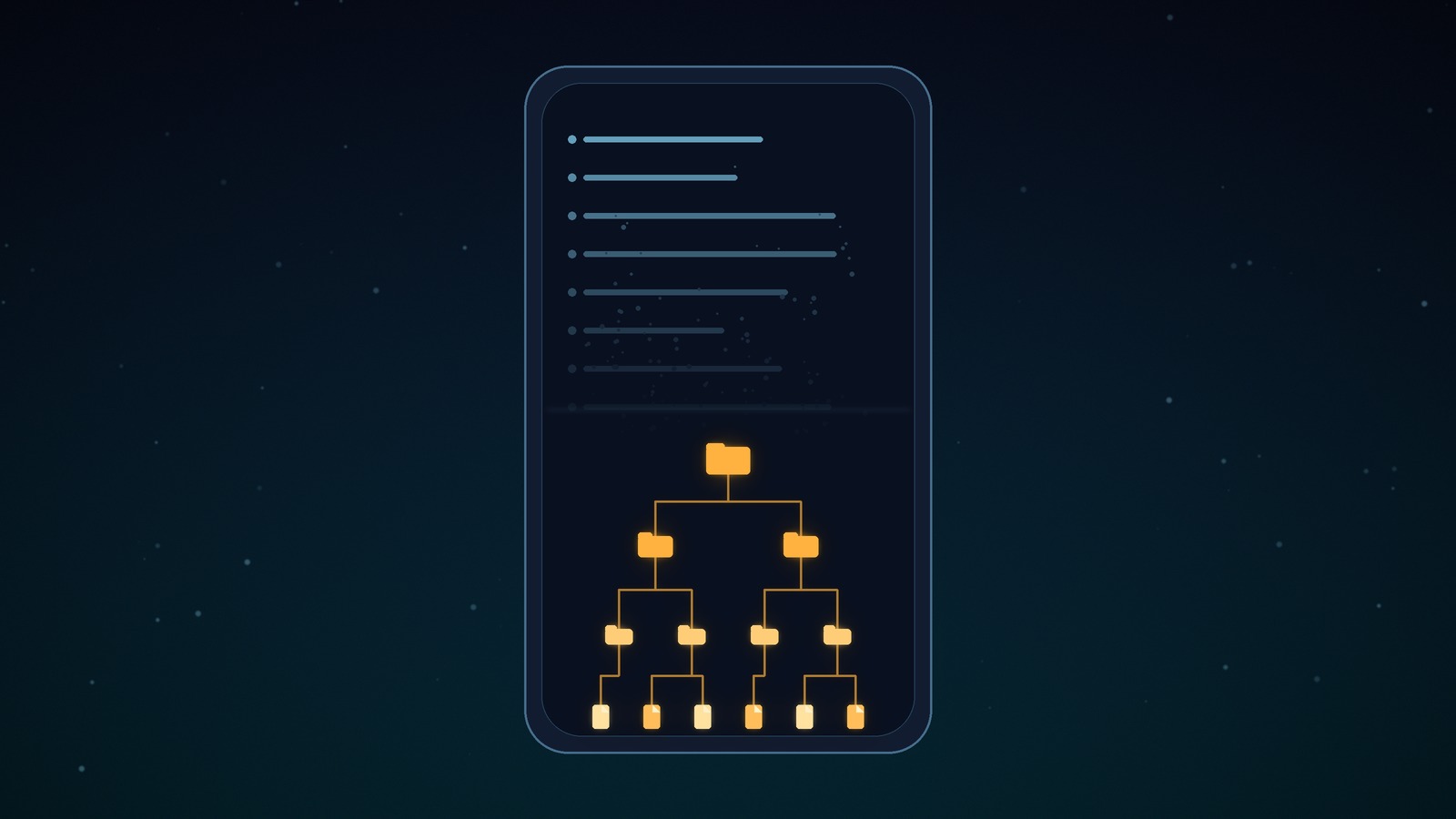
The layout was documented years ago by Ryan Benson in his Deciphering Browser Hieroglyphics series, and it has aged well. Inside the profile’s File System folder you find numbered directories, 000 onwards, plus an Origins folder and a Paths store. Each numbered directory contains a p and a t branch, for persistent and temporary storage, and below those sit files with eight-digit names. Those files are the real content, raw bytes with no extension, whatever the site decided to save: an image, a font, a chunk of a download.
Nothing on disk tells you what any of this means, because the translation lives in two LevelDB databases. One maps the numbered directories to origins, with names like https_www.example.com_0. The other maps the folder structure the site believed it had to the eight-digit file that actually holds the data. LevelDB is the key-value format Google wrote for exactly this sort of job, the same family of storage behind IndexedDB and the AI assistant artifacts I covered over the summer. A hex viewer will show you readable fragments and little else, so you want a parser. On a desktop profile, Hindsight handles it and puts the result in a Storage tab, since these records carry no timestamps and do not belong in a timeline. ccl_chromium_reader covers the File System API for scripted work.
On a phone image the path for Chrome is the Default folder under app_chrome in the app’s data directory, and the other Chromium browsers keep the same structure under their own package names. A first look takes thirty seconds:
cd data/data/com.android.chrome/app_chrome/Default
find "File System" -type f | sort

# the LevelDB write-ahead log is uncompressed, so strings is enough for a first pass
# (the .ldb tables are Snappy-compressed: use a LevelDB-aware parser for those)
strings -n 8 "File System/Origins/"*.log | sort -u
There is a second location that is easy to miss. When a site is embedded inside another site, Chrome keeps its File System data in a separate bucket folder, under WebStorage/<bucket>/FileSystem, rather than in the folder above. ALEAPP’s Bucket Storage artifact reads these and names both the embedded site and the top-level site that hosted it, with times taken from the browser’s QuotaManager. The embedded address never appears in History, because the user never navigated to it. Anyone who has chased advertising and tracking iframes will see the potential, and also the trap, which I will get to below.
What survives, step by step
Brignoni’s test is short and clean, which is exactly what a known-data test should be. He wrote files with a page he controlled, then cleared things in stages and looked at what was left.
| What the user cleared | What the examiner finds |
|---|---|
| Browsing history only | History rows gone. The site record, folder names, file names and file contents all still present. |
| Cookies and site data | The files are removed, but a deleted record still names the site. |
| Site embedded in another site | Files in a separate bucket folder, with the embedded address absent from History. |
The first row is the one that deserves a second reading. The Clear browsing data dialog separates history from site data, and plenty of people tick the box labelled history because that is the one that sounds like their activity. Site data is a different checkbox, and the File System store follows it, not the history one. The practical effect is that the visible record of where you went disappears while the invisible record of what a site stored on your device stays.
The second row is a small gift to investigators. A deleted entry in a LevelDB database is superseded rather than wiped, so older copies stay in the tables until a compaction rewrites them. ALEAPP reports sites both live and deleted, so even after a thorough cleanup there can be a record saying that a given origin once used the store. That is my reading of the mechanism, and the pull request describes the outcome rather than the cause, so treat the explanation as a working theory.
Now the reality check, which Brignoni deserves credit for publishing himself. Across his corpus of 22 images, the first artifact found 33 site rows on 16 of them, two folder rows, and not a single saved file. The bucket artifact added 29 rows on 6 images. Sites are common, folders are rare, and files with usable content are rarer still. This is a source of leads rather than a treasure chest, and the honest sentence for a report is that the store usually tells you which origins used it, and only sometimes what they left there.
Reading the evidence without overreading it
Start with time. The bucket times come from the QuotaManager and cover the whole bucket, set by any storage client that touched it, so they say nothing reliable about when a particular file was written. Intent is the next problem. A site record in a bucket proves that something stored data on behalf of an origin, not that the user went there, and an embedded third party is the textbook case. Corroborate with History and, where it exists, with network artifacts before you write a sentence about what the owner of the phone did.
Then there is version drift. ALEAPP’s parsers cite the Chromium source at revision 3a50e012, which is version 130, while the known-data test ran on Chrome 124. That the two agree is reassuring, but the format is an internal detail of the browser and nobody promised to keep it stable. Run a known-data test on the Chromium build in front of you when a case rests on this artifact. On 1 November the same author reworked the output columns so each row carries an Android user, which matters on devices with secondary profiles, and gave the Files artifact a Bucket ID to tell first-party storage from bucketed storage. Parsers in this area are still moving week by week.
Then there is the question of what to look for once you know the door exists. Benson found years ago that Mega stages downloads in the File System before copying them to the Downloads folder, and that leftovers can remain for months after the final file has been deleted. Google Docs fills the store with images and fonts. If you work cases involving exfiltration or illicit file sharing through a browser, a folder of orphaned eight-digit files under a file-hosting origin is worth the detour. And a hypothesis of my own, untested on real data: since sites run SQLite databases inside OPFS, a database should sit in that store as a plain eight-digit file, so a quick search for the SQLite header across the tree might turn up whole application databases that no browser-aware tool is parsing yet.
grep -rl "SQLite format 3" "File System"
Where it fits in the toolbox
The browser profile on Android keeps becoming a more interesting evidence source and a worse-documented one. Once an extraction gives you the whole file system of a phone, a subject that runs through my piece on Cellebrite’s Advanced Unlocks, the bottleneck moves from getting the data to knowing where the browser hid it. IndexedDB, Service Worker caches, Local Storage and now the File System store all share the same LevelDB roots, and a team that can read one can read all of them.
One last detail from the ALEAPP pull requests caught my attention. The commit messages carry a co-author trailer naming Claude Opus 5.5, and the test cases were built from known data on an emulator, with the results committed alongside the code. After writing about Torvalds, compilers and AI, I find that combination reassuring: the tool may have had help, but the claim it makes was checked against data the author planted himself. That is a better standard than most closed-source parsers will show you.
So the next time a suspect, a client or a family member tells you they cleared everything, ask which checkbox they ticked.
FAQ
Does clearing browsing history remove Chromium’s File System store on Android?
No. History and site data are separate checkboxes in the Clear browsing data dialog, and the File System store follows site data. Clearing only history leaves the store, folder names and file contents intact.
Where does the File System store live inside a Chromium profile?
Inside the profile’s “File System” folder, with numbered directories plus an “Origins” folder and a “Paths” LevelDB store. Embedded sites also leave data under “WebStorage/
Can the timestamps on these artifacts tell when a file was written?
Not reliably. Bucket times come from the QuotaManager and cover the whole bucket, so they say nothing dependable about when a particular file was written.